
Quick answer: Breadcrumbs in Materialize CSS are not a framework component, so you build them with a nav element and an ordered list styled with your own CSS. Mark the current page with an active class and arial-current attribute, and keep the separator marks inside CSS pseudo-elements so the markup stays clean and accessible.
Learn to implement Breadcrumbs in Materialize CSS
Breadcrumbs are an intuitive way of showing the current location of the user on a website or web application. Just beneath the navigation bar is the ideal place for a breadcrumb. The position of the breadcrumb and the design of the breadcrumb plays a vital role in user experience design.
It is astounding that the Materialize CSS has nailed the design of the breadcrumb. Its unique userfriendly design makes a standout. Web designers can quickly implement the breadcrumb in their projects, and it is so easy that there is no JavaScript element in displaying the breadcrumb. Copying a few lines of HTML code can bring the required breadcrumb in the project. Following code can be directly copied into your web project. The only thing that is needed is to change the corresponding link name and links. Here’s the link to Materialize CSS Breadcrumb Documentation
 <nav>
    <div class="nav-wrapper">
      <div class="col s12">
        <a href="#!" class="breadcrumb">First</a>
        <a href="#!" class="breadcrumb">Second</a>
        <a href="#!" class="breadcrumb">Third</a>
      </div>
    </div>
  </nav>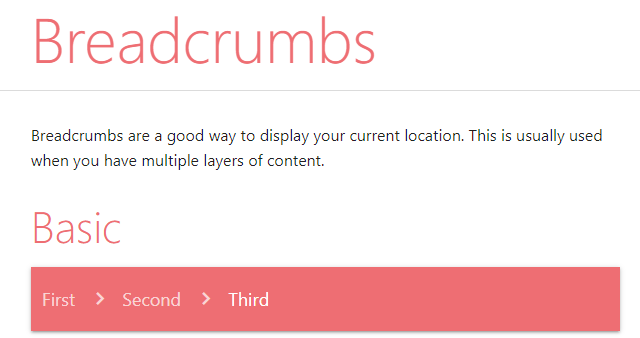
Thanks to the Materialize CSS team for giving us this excellent, yet, easy-to-use breadcrumb functionality. Learn how to Create FAB to Toolbar
Part of the Materialize CSS Mastery series: start with the complete Materialize CSS tutorial for the full course.
Frequently asked questions
Is there a ready-made breadcrumb component in Materialize?
No. Breadcrumbs need custom markup and CSS, though Materialize grid classes help you align them with the page layout.
How should I mark the current page in a breadcrumb list?
Give the last list item an active class and the aria-current attribute set to page so screen readers announce it correctly.
How do I add separators between breadcrumb items?
Use a CSS pseudo-element on each item to insert a slash or arrow, which keeps the separator styling out of the HTML.
Last updated on · Written by Dinesh Kumar R