
Quick answer: Adding a logo to a Materialize CSS navbar means placing an image inside the brand element at the start of the nav. Set the image height in CSS, add a small right margin, and keep the brand anchor a flex container so the logo and site name stay vertically aligned.
Table of Contents
Learn Adding Logo to the Navbar in Materialize CSS and implement in you website and web applications
In the previous tutorial, we discussed how to create Navbar using Materialize CSS Framework. If we explore the coding involved in the Navbar, there is an individual component named Logo. The Logo mentioned there is just a text and this can be changed to the image. Most of the Clients will be having their company logo, which can be added in this section. In order to demonstrate, how to add an image logo in the navbar, we have created a dummy logo and added it to the Project Folder. Usually, the logo image can be in the following formats: jpg, jpeg, png, or SVG.
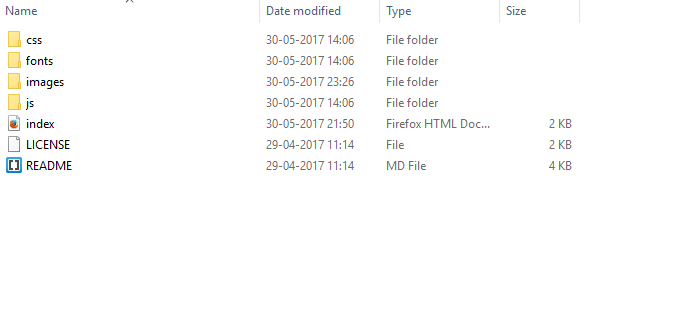
Now that we have a sample logo in our images, we can change the Logo text to a sample logo image.
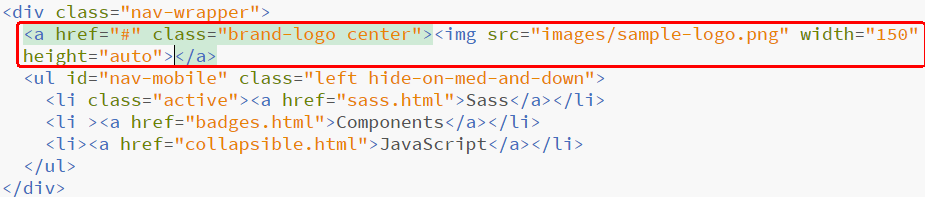
Here <img> tag is used to insert the logo file. Furthermore, in order to control the width and height of the logo, width and height classes are used. The width and height can be adjusted according to the requirement.

Now we have the logo in our Navbar
Part of the Materialize CSS Mastery series: start with the complete Materialize CSS tutorial for the full course.
Official documentation
For the full reference behind this guide, read the Materialize CSS navbar documentation. It is the source the details above are drawn from, and the first place to check when an option or attribute name changes.
Frequently asked questions
Where does the logo image go inside a Materialize navbar?
Place the img inside the brand element at the beginning of the nav, wrapping both the image and site name in the same anchor.
Why does my navbar logo look blurry or oversized?
It is rendering at natural size. Constrain it with CSS by setting an explicit height and letting width scale automatically.
Can I use an SVG file as a Materialize navbar logo?
Yes. Point the img src to the SVG file and set its height in CSS. Inline SVG is not needed for a simple navbar logo.
Last updated on · Written by Dinesh Kumar R