
Quick answer: An Angular PWA is a normal Angular application plus a service worker that caches assets and API responses so the app opens and works offline. Add it with ng add @angular/pwa, describe what to cache in ngsw-config.json, and handle the update flow so users are never stuck on an old version. The install prompt, offline fallback and push notifications all come from the same service-worker layer, and every change to the manifest or the cache config must be audited before release.
Table of Contents
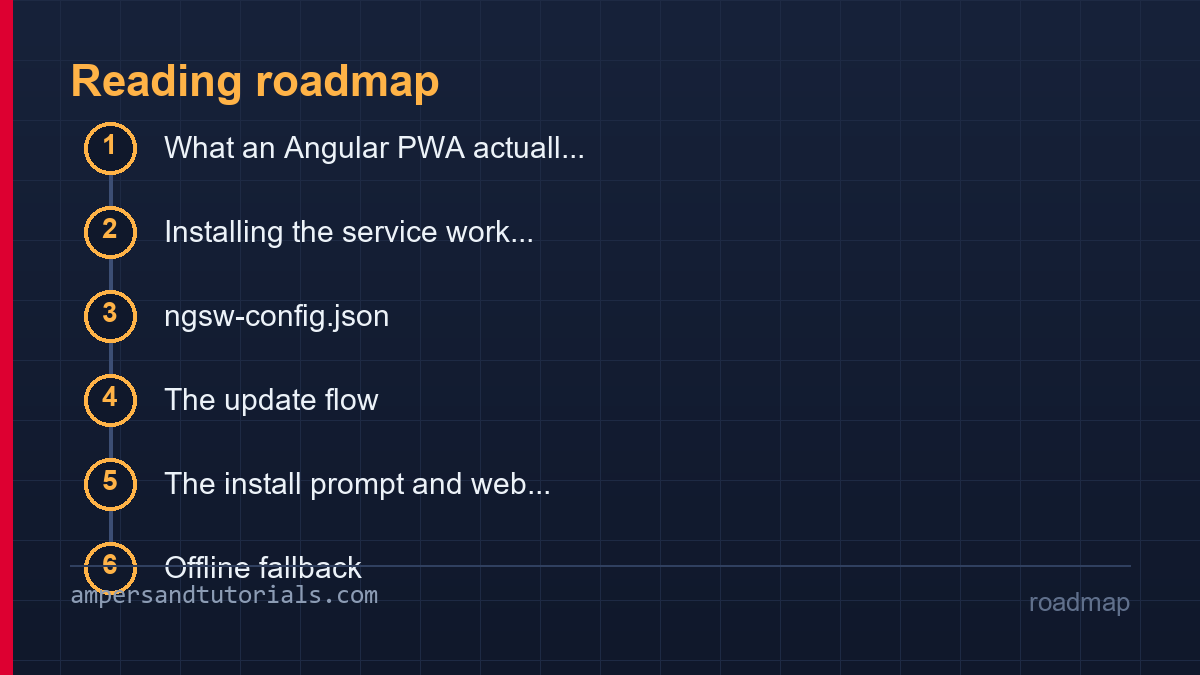
What an Angular PWA actually is
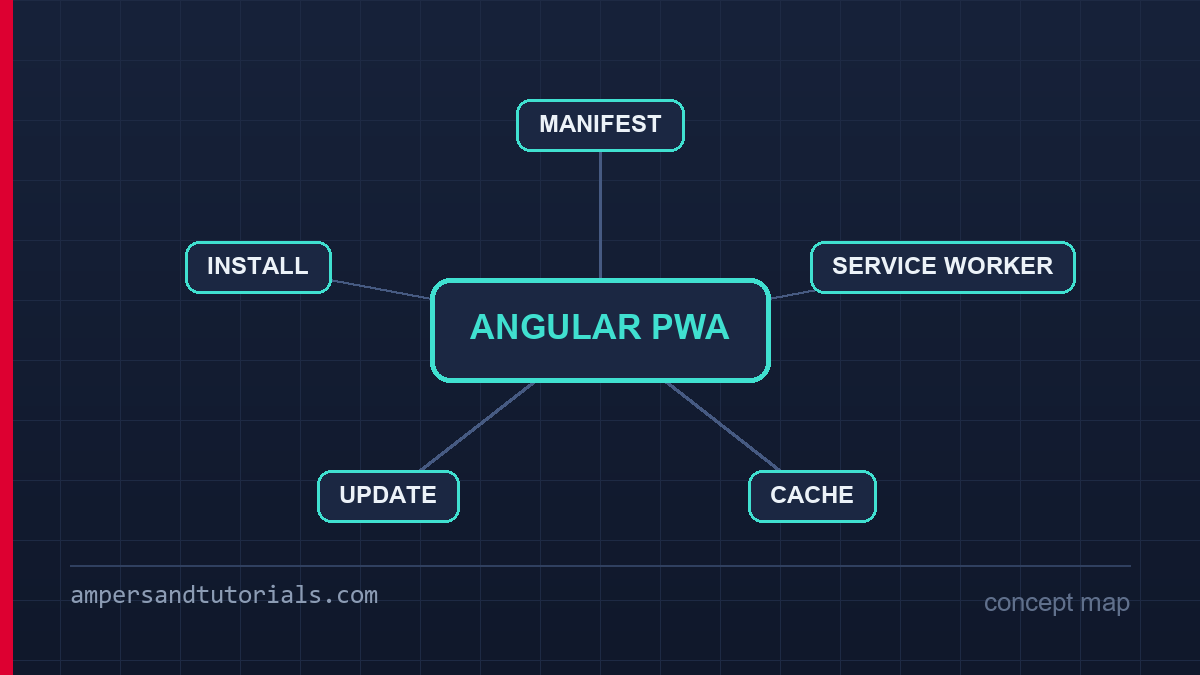
A progressive web app is not a different kind of application. It is the same Angular build served over HTTPS, with two extra files doing the work: a web app manifest that describes the app to the browser, and a service worker script that intercepts network requests. The service worker is the piece that changes everything. It runs in its own thread, outside the page, and decides for every request whether to go to the network, serve from cache, or serve a cached copy while refreshing in the background. Once that decision layer exists, offline support, installability and fast repeat loads all fall out of the same mechanism.
For a content site the benefit is return visits that render instantly from cache. For a tool or dashboard the benefit is an app that survives a tunnel, a plane or a flaky mobile network — the case where a client-rendered Angular application would otherwise show a blank page. The cost is a new class of bug: a stale bundle served for a week, a cache that never releases storage, or an update that half-applies because the old service worker and the new one disagree about what to fetch. The performance framing is the same one in the performance and deployment guide; an Angular PWA pushes repeat-visit performance to the extreme end of it.
Installing the service worker with ng add
Angular ships first-party support, and the schematic wires the whole thing up:
ng add @angular/pwa

# what the schematic adds:
#   ngsw-config.json          the cache description
#   src/manifest.webapp       app name, icons, theme
#   ngsw-worker.js            generated at build time
#   serviceWorker provider    registered in app.config.ts

ng build        # dist/browser/ngsw-worker.js appears next to index.html
The worker that ships is not handwritten — the CLI generates it from ngsw-config.json at build time, with a manifest of every hashed asset in the bundle. That design has a consequence worth internalising: the service worker only knows about files that existed when you built. Adding a route, an icon or a lazy chunk and forgetting to rebuild the worker is how a PWA ends up 404-ing a resource it has never seen. In development the worker is off by default, so offline behaviour must be checked against a production build rather than ng serve — a habit that prevents the classic bug report of “works offline on my machine” that only ever tested the dev shell.
Registration itself is one provider. The generated configuration points the browser at the worker script, and Angular’s provideServiceWorker handles registration timing so the worker does not compete with the application for the first paint. From that point on, every deploy is also a service-worker deploy, and the release process has to account for it.
The build pipeline is the other half of setup. A hashed asset with a stale worker reference is a 404 the cache will keep serving, so the worker’s generated manifest must be built from the same output directory as the application — which is what the Angular CLI’s production configuration arranges. Keep the hashed files long-lived at the CDN and serve ngsw.json with no-cache headers, and the two caching layers cooperate instead of fighting: immutable assets cached forever, the version manifest always fresh.
ngsw-config.json: describing the cache
The config is a data file, not code: it lists resource groups and tells the worker how to treat each one. Three strategies cover almost everything an Angular PWA needs. prefetch downloads assets eagerly at install time — right for the application shell. lazy caches items the first time they are requested — right for route chunks and images. freshness always goes to the network and falls back to cache only when the network fails — right for API data that must not go stale silently.
{
  "$schema": "./node_modules/@angular/service-worker/config/schema.json",
  "index": "/index.html",
  "assetGroups": [
    {
      "name": "app",
      "installMode": "prefetch",
      "resources": { "files": ["/favicon.ico", "/index.html", "/*.css", "/*.js"] }
    },
    {
      "name": "images",
      "installMode": "lazy",
      "updateMode": "prefetch",
      "resources": { "files": ["/assets/**"] }
    },
    {
      "name": "api",
      "installMode": "lazy",
      "resources": { "urls": ["/api/**"] }
    }
  ],
  "dataGroups": [
    {
      "name": "catalog-api",
      "urls": ["/api/products/**"],
      "cacheConfig": {
        "strategy": "freshness",
        "maxSize": 50,
        "maxAge": "1h",
        "timeout": "3s"
      }
    }
  ]
}
Read the config as a policy document. The shell group is fetched in full, so a broken deploy breaks immediately and visibly rather than one route at a time. Images are cached lazily with an update mode that refreshes them in the background, so a logo change does not force a full re-download on install. The API group decides how long data may live and what happens when the network is slow: freshness with a short timeout gives online users current data and offline users the last known answer, instead of a spinner that never resolves. Getting these three groups right is most of an Angular PWA’s behaviour; everything after this section is edge cases around them.
The update flow: never stranding users
The most common Angular PWA failure is not offline support — it is an application that never updates. The mechanism that causes it: the browser fetches ngsw.json in the background, notices a new version, installs it, and waits. The currently open page keeps running the old version, and the new service worker sits in waiting until every tab using the old one closes. A user who keeps one tab open for a week therefore runs a week-old application while the server serves everyone else the new one. The fix is an explicit prompt: listen for the worker that is waiting, tell the user an update is ready, and on confirmation close the gap by reloading.
import { SwUpdate, VersionReadyEvent } from '@angular/service-worker';
import { filter } from 'rxjs';

constructor(private sw: SwUpdate) {
  sw.versionUpdates.pipe(
    filter((e): e is VersionReadyEvent => e.type === 'VERSION_READY'),
  ).subscribe(() => {
    if (confirm('A new version is available. Reload?')) {
      document.location.reload();
    }
  });
}
Two habits make this safe. First, never force the reload during an interaction — a user mid-form loses work, and one forced reload is enough to uninstall a habit of trust. Second, pair the prompt with SwUpdate.checkForUpdate() triggered on navigation or on window focus, because the default check interval means a long-lived tab can sit on a stale version longer than you expect. The Angular PWA documentation describes the full set of version events; the two that matter in production are the ready event above and VERSION_INSTALLATION_FAILED, which should be logged rather than swallowed, since it usually means the cache is full or the network dropped mid-install.
A staged rollout changes the calculus. When the new version may be broken, the update prompt becomes a release valve: hold the waiting worker back on a percentage of users, watch error rates, and let the cohort advance when the numbers are clean. The service worker gives you something a normal deploy does not — a version gate that can be paused server-side by keeping ngsw.json unchanged — and teams that discover this after their first bad PWA release start treating the manifest as part of the deploy checklist rather than build output.
The install prompt and web app manifest
The manifest is what makes the app installable. It tells the browser the app name, the icons to use on a home screen, the theme colour behind the address bar, and where to start when the icon is tapped. Angular’s schematic creates manifest.webapp and links it from index.html; the work after that is real work, because the browser’s installability criteria are specific: a manifest with name, icons at the required sizes, start_url and display: standalone, a registered service worker with a fetch handler, and an HTTPS origin. Miss one and the install prompt never appears — with no error anywhere, only a missing prompt.
Icon quality is where teams lose this for no good reason. A 192-pixel icon scaled from a 512 one looks acceptable on a desktop shortcut and mushy on a phone home screen; maskable icons need their own safe-zone padding or the system’s circle crops the mark. Generate the full icon set from one master file rather than exporting by hand, and check the install banner’s diagnostics in the browser’s application panel — it names the exact failed criterion.
Whether to show a custom install button is a product decision the browser makes easy either way. The beforeinstallprompt event can be captured, a button rendered, and the prompt shown at a moment of demonstrated value — after a first successful task, say — instead of on the first page view where it is reflexively dismissed. Whichever route is chosen, keep the event handling in one service so the logic is testable and the button can be removed without hunting listeners across components.
Offline fallback, push and background sync
Offline fallback is one configuration step: point the worker at a fallback page for navigation requests that cannot be satisfied. Without it, a deep link visited offline resolves to the browser’s dinosaur; with it, the user gets a page that says the content is unavailable and offers a way back — a small difference in configuration and a large difference in how the failure reads. The fallback page itself must be part of the prefetched shell, because a fallback that needs the network is not a fallback.
What not to cache deserves equal clarity. Anything behind authentication, anything personalized, anything whose staleness costs money — checkout totals, stock counts, permission states — belongs outside the cache or behind the freshness strategy with a short timeout. The service worker is a cache with opinions, not a security boundary: responses it stores can be read by anything running on the origin, so a private response parked in a shared cache is a leak with a delay. Write the exclusion list first, then allowlist what is safe, rather than the reverse.
Storage pressure is the other quiet failure. An Angular PWA that accumulates cached API responses on a low-end phone eventually hits the browser’s quota, and the install of a new version fails with a storage error the user experiences as “the app will not update”. Cap every data group with a maxSize, prefer freshening small payloads over storing large ones, and test the update flow on a device with a full disk — quota behaviour differs between desktop browsers and mobile ones, and the mobile case is the one users hit.
Push notifications extend the same worker. The manifest grants the permission, the worker’s push handler receives the payload while the page may not even be open, and a click on the notification routes into the application through the notification’s data. The rule that keeps push honest: the permission prompt is a request for a commitment, so ask after the user has a reason to want notifications — an order update, a mention, a build that finished — rather than on first load, where it is one click away from being permanently declined. The just-in-time PWA guidance makes the same argument from the other direction: earn the install before asking for it.
Background sync is the quiet member of the group. A form submitted while offline can be queued by the worker and flushed when connectivity returns, which turns “you are offline” from a dead end into a saved draft. It is worth implementing for genuinely retryable actions — notes, status changes, queued edits — and worth refusing for anything with money, stock or one-shot semantics in it, because a queue that replays an old purchase after a long offline period is a support ticket, not a feature.
Testing and auditing the Angular PWA
The service worker changes what “reload” means, so testing has to change with it. The application panel’s service-worker section is the first tool: it shows which version is active, which is waiting, and what is in each cache. The ngsw-state diagnostic command in the browser console dumps the same information from the worker’s own view, which is the authority when the page and the worker disagree about what is cached.
The audit loop that catches real bugs takes four minutes. Build for production, serve the build, load it once, then switch the network to offline and reload: the app must open from cache with its route chunks intact. Next, deploy a visible change, reload twice, and confirm the update prompt appears and the new version actually renders — this is the step that catches the stranding bug described above. Finally, run Lighthouse’s PWA audit; it verifies the manifest, the icons, the worker’s fetch handler and the installability criteria in one pass, and its failures name the missing criterion instead of a vague symptom.
Automated coverage belongs in the e2e suite for one reason: cache state makes manual testing unreliable. A test that clears indexedDB, unregisters workers and reloads gives every run the same starting point; without that, the same suite passes on a fresh machine and fails on a developer’s laptop whose worker is three versions old. The testing and debugging guide has the harness patterns; the service-worker-specific cases are the offline reload and the update-ready path.
The checklist that keeps an Angular PWA healthy in production: never edit the worker by hand — it is generated, and a hand edit is overwritten at the next build; treat ngsw-config.json changes as deploy-affecting as much as code changes; watch for the storage quota errors that appear only on low-end phones after months of use; and make sure the server returns ngsw.json with no cache headers, because a CDN that caches the version manifest is a CDN that pins every user to an old release. Each of these is invisible in a one-day test and decisive over a year of usage.
To learn Angular properly with a mentor, Ampersand Academy teaches web development one-to-one.
New to Angular? Build the fundamentals first in the free 14-part Angular course, then come back to this guide for the deeper material.
Cache headers are the quiet partner of the service worker. The worker controls what happens after registration, but the server controls whether the worker itself updates. Serve ngsw.json with no-cache headers so every page load checks for a new version, and keep hashed assets immutable with long cache lifetimes. A CDN that caches the version manifest pins every visitor to the first release they saw, which is the most insidious PWA bug because it is entirely server-side and invisible until users complain that nothing ever changes.
For teams shipping multiple environments, the PWA config changes per environment but not per deploy. Production points the worker at the live API, staging points it at the staging API, and each environment builds its own ngsw-config.json. Keeping those configs in version control means a stale staging worker never pretends to be production, and a misconfigured dev worker does not accidentally serve in a preview URL. An Angular PWA is only as reliable as the cache policy that backs it, and that policy lives in the deployment step, not the application code.
Frequently asked questions
Does an Angular PWA work without internet?
Yes. The service worker serves the application shell, route chunks and cached data from the cache when the network is unavailable. Anything never fetched before, or marked freshness-only, still requires a connection.
Why is my Angular PWA not updating?
The new service worker is installed but waiting, because tabs running the old worker keep it alive. Detect the waiting worker, prompt the user, close all old tabs and reload. Also check that ngsw.json is served with no cache headers.
Should I cache API responses in the service worker?
For public, cacheable data yes — use the freshness strategy with a short max-age so online users always get current data. Never cache personalized or authenticated responses unless they are user-scoped and safe to replay.
Does a service worker work on HTTP?
No. Service workers require HTTPS, except on localhost during development. A PWA deployed behind plain HTTP registers nothing and the install prompt never appears.
How do I test an Angular service worker locally?
Build for production and serve the dist folder — ng serve does not register the worker. Then use the browser’s application panel to inspect caches, switch to offline mode and reload, and verify the update prompt after a rebuild.
Last updated on · Written by Dinesh Kumar R