
Quick answer: PyCharm is a popular Python IDE for writing, running, and debugging code. Install Python first if it is not already on your system, then download PyCharm Community Edition from jetbrains.com, run the Windows installer, choose the install path, and tick the launcher and file association options. Open PyCharm afterwards to set a Python interpreter.
Table of Contents
Learn these easy steps to install pycharm in 2026 and get started with Python Analytics
What is Pycharm?
PyCharm is an integrated development environment used in computer programming, specifically for the Python language. It is developed by the Czech company JetBrains
Here are the easy steps to install pycharm:
Step 1: Search in Google “Pycharm Community Edition”

Step 2: Click on Download PyCharm from jebrains.com

Step 3: Click on the download button in JetBrains website

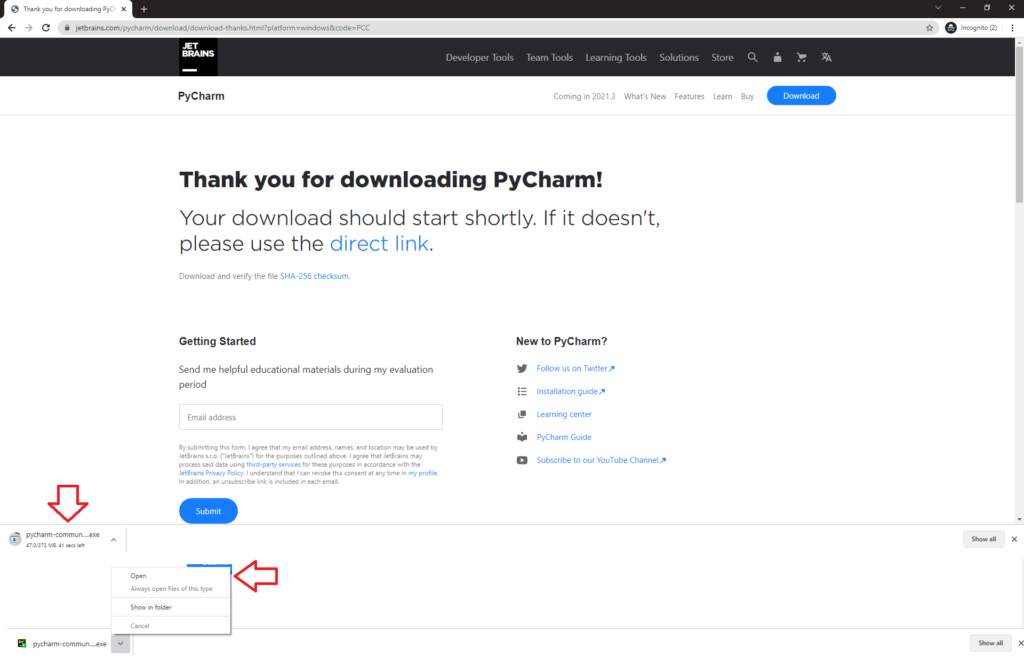
Step 4: Wait till the download is complete and click on open exe
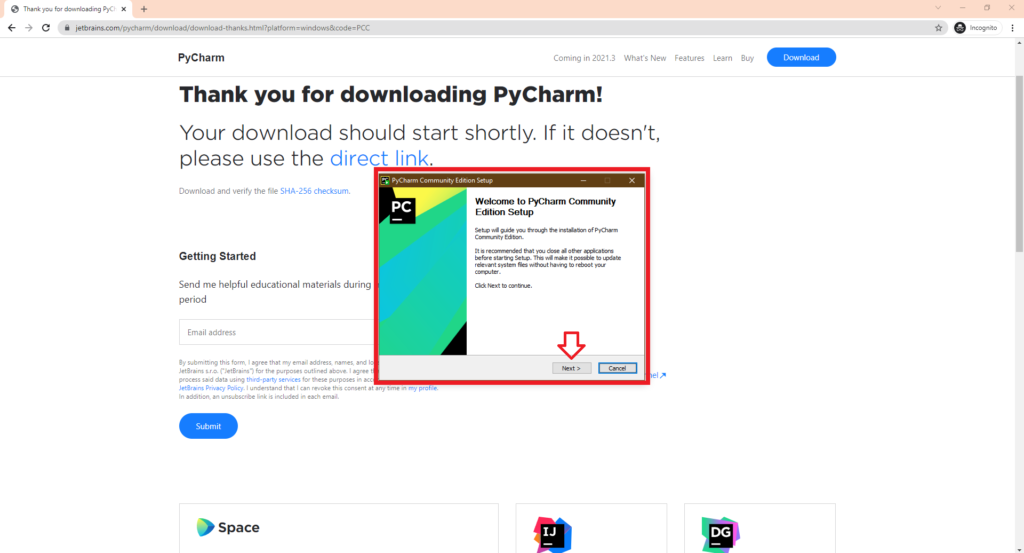
Step 5: Click on Next in the Installation Progress Screen
Step 6: Choose the Installation path and click next

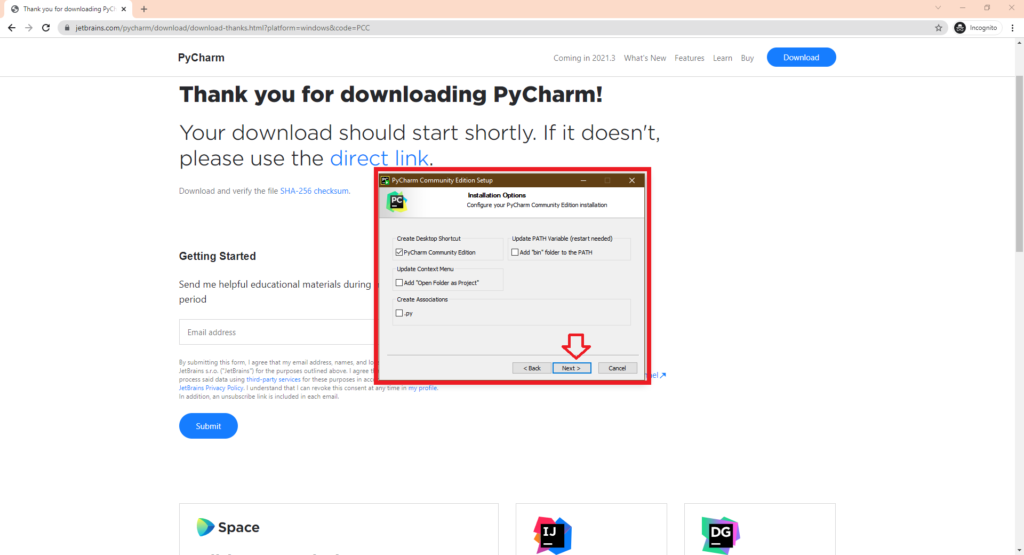
Step 7: Choose the Installation Option and click next
Step 8: Click on Start Folder
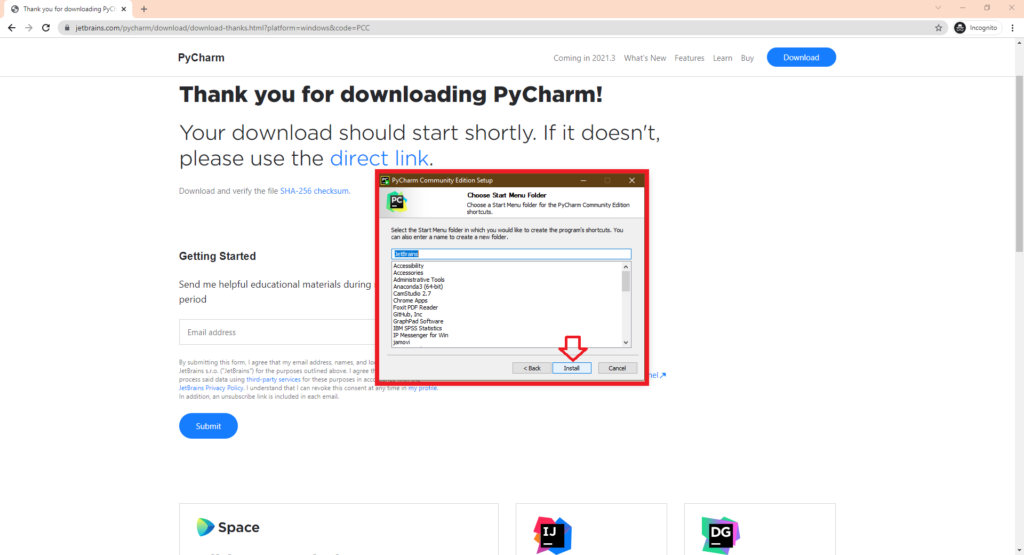
Step 9: Click on Installation Progress
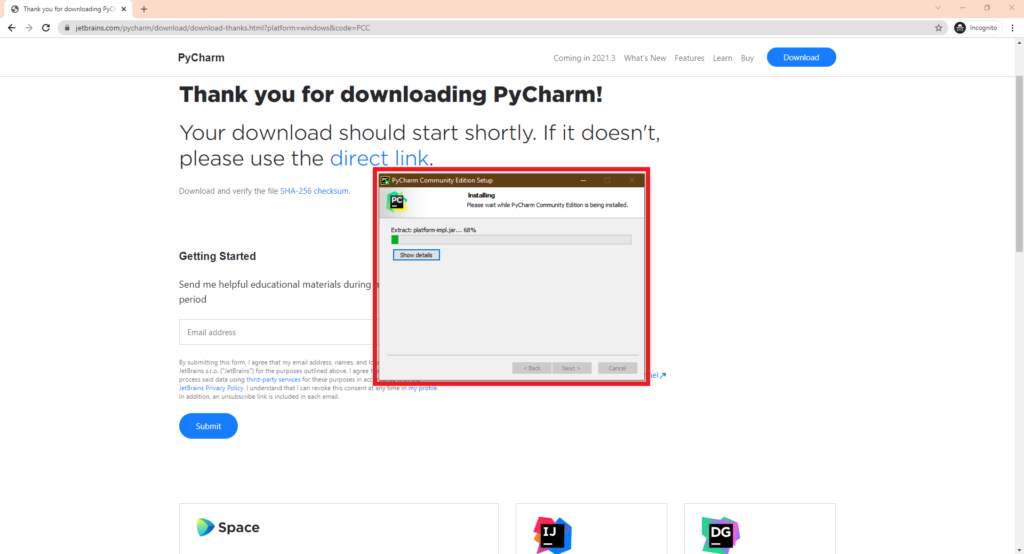
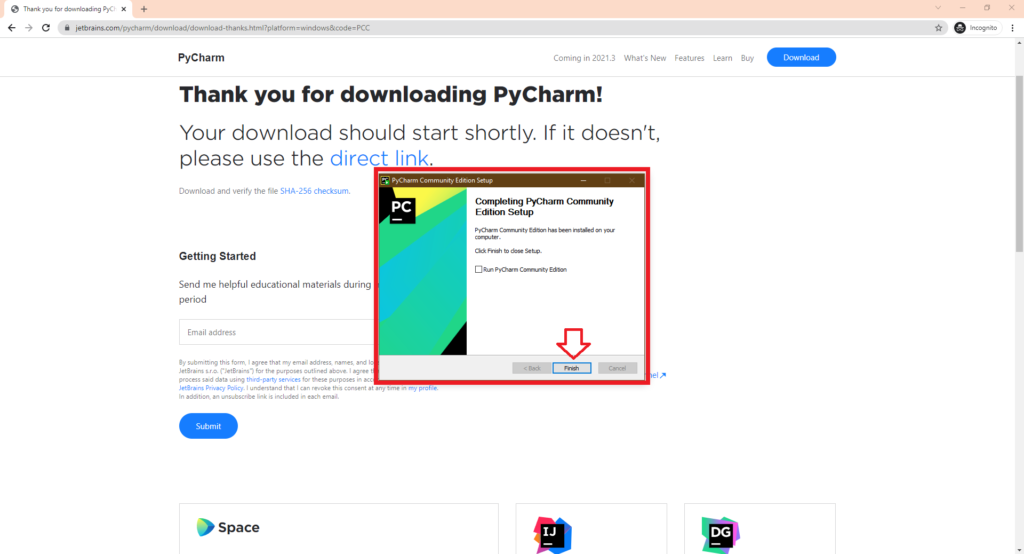
Step 10: Click on Finish in the Pycharm Installation
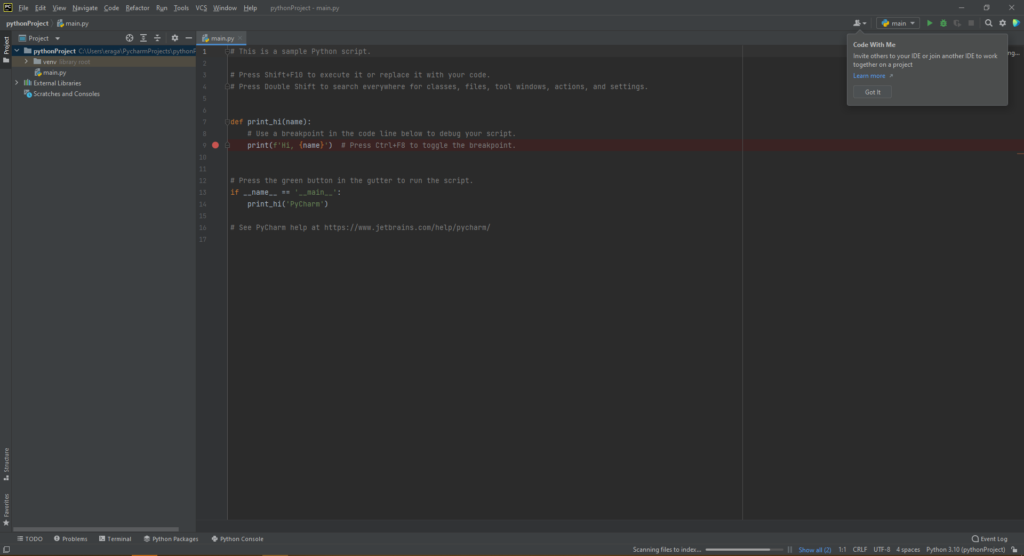
Step 11: Open Pycharm after installation
Now that you have successfully completed Python Installation, you can also check our post on Installing R Programming Language for Data Analytics. Also check our course for Python Analytics from Ampersand Academy.
Frequently asked questions
Is PyCharm free to use?
Yes. PyCharm Community Edition is free and open source. The Professional edition with advanced tools is paid, with a free student licence available.
Do I need Python installed before PyCharm?
It is best to have Python ready first, since PyCharm needs an interpreter to run your code. You can point it to a new virtual environment it creates.
What is the difference between Community and Professional?
Community covers Python, JavaScript, and basic tools. Professional adds database, web framework, and advanced refactoring support for paid projects.
Last updated on · Written by Ganesh Kumar R