


Quick answer: TypeScript is a typed superset of JavaScript that adds optional static types and compiles to plain JavaScript. It catches errors before your code runs, supercharges autocomplete, and works on Windows, Mac and Linux. Install it with one npm command and you are writing safer code within minutes.
Why TypeScript? The one decision that changes how you code

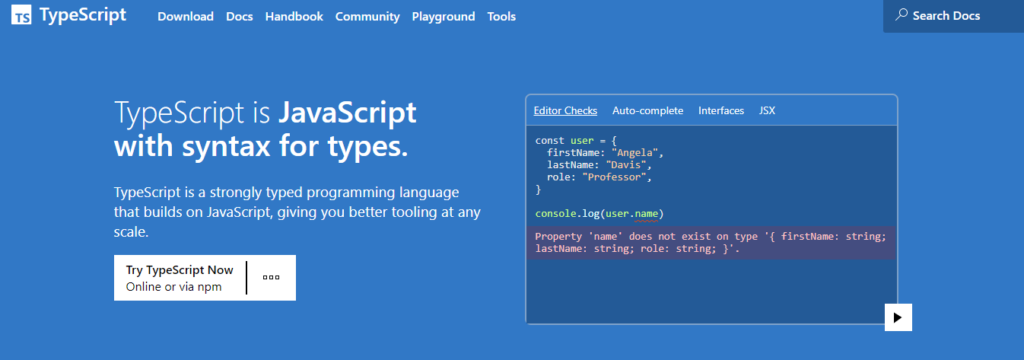
JavaScript runs everywhere, but it never tells you when a bug is coming. TypeScript fixes that by letting you annotate your data with types – and then checking every line against them while you type. It is not a new language to learn from scratch; it is JavaScript with safety rails. Everything you write in JavaScript still works, and you adopt the extra features at your own pace.
What makes TypeScript genuinely unique – and why companies build products on it – comes down to a handful of advantages:
- Optional static typing: the key word is discretionary. Add types where they help; skip them where they would slow you down.
- A clever type inference engine: TypeScript often guesses your types for you, so you get protection without typing more.
- Early access to modern JavaScript: write ES6 and ES7 features now, even if some browsers have not caught up.
- Automatic compilation: TypeScript turns your source into plain JavaScript that runs in every major browser.
- IntelliSense everywhere: your editor autocompletes properties, documents your APIs and flags mistakes as you type.
If you have ever pushed a “simple change” and seen a screen full of errors in the browser console, you already know the problem TypeScript solves – it catches those mistakes while you write, not after you ship.
Install TypeScript on Windows, Mac and Linux
Because TypeScript runs on Node.js, installation is identical on every operating system. The only real requirement is a working Node install. Here is the whole flow:
Step 1: Make sure Node.js is installed. Open a terminal and check with node -v. If it prints a version number, you are ready.
Step 2: Open your command prompt (Windows) or terminal (Mac / Linux). TypeScript is fully available on all three platforms, so nothing changes here.
Step 3: Test whether the compiler is already present by typing tsc. If you see a version number, skip ahead. If it throws an error, it is not installed yet.
Step 4: Install TypeScript globally:
npm install -g typescriptNeed it just for one project instead? Run the local form inside that project folder:
npm i typescriptA quick translation: -g stands for global and makes tsc available everywhere on your machine; plain npm i installs it inside the current folder only.
Step 5: Wait for the install to finish.
Step 6: Double-check by typing tsc again – you should now see a version number roll back at you.
Where to go next
With TypeScript installed, the natural next step is to create your first program. From there you will work through arrays, functions, interfaces and loops. Or see the full topic map in our TypeScript for Beginners: The Complete Learning Path – a single guide that ties every concept together in order.
You can also check our Roadmap to Web Development to understand exactly where TypeScript fits inside the bigger picture.
Official documentation
For the full reference behind this guide, read the official TypeScript handbook introduction. It is the source the details above are drawn from, and the first place to check when an option or attribute name changes.
TypeScript – quick FAQ
Why use TypeScript instead of JavaScript?
u003cpu003eTypeScript adds static typing that catches errors at compile time, which makes larger projects safer and easier to maintain.u003c/pu003e
Does TypeScript run in the browser?
u003cpu003eNo. TypeScript compiles to plain JavaScript, and that compiled JavaScript runs in the browser.u003c/pu003e
Is TypeScript free?
u003cpu003eYes. TypeScript is free, open source and created by Microsoft.u003c/pu003e
Which frameworks use TypeScript?
u003cpu003eAngular is fully built on TypeScript; React, Vue and Node.js projects commonly adopt it as well.u003c/pu003e
How do I install TypeScript?
u003cpu003eInstall Node.js, then run npm install -g typescript in your terminal and compile files with the tsc command.u003c/pu003e