
Quick answer: In SAS University Edition, adding a shared folder lets SAS read your own data files, not just its internal library. Open the app, edit the Workspace Server settings, and add your folder path in the SAS startup options. Save and restart the server, then that folder becomes a library you can use in Library Wizard.
Learn How to add Shared Folder or File Storage in SAS University Edition used for User Library Creation
In SAS University Edition, we need to add a FOLDER that will act as a Space holder between the OS and the Virtual OS. The Folder is an important one as it is useful for the transfer of files and data from Working OS and Virtual OS. We will see how the Folder is Created and Configured in SAS University Edition – Oracle VirtualBox, OS – Virtual OS Interface.
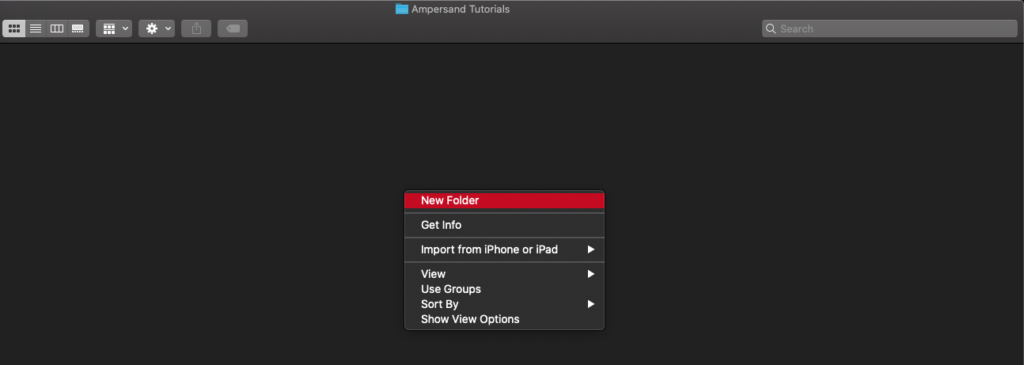
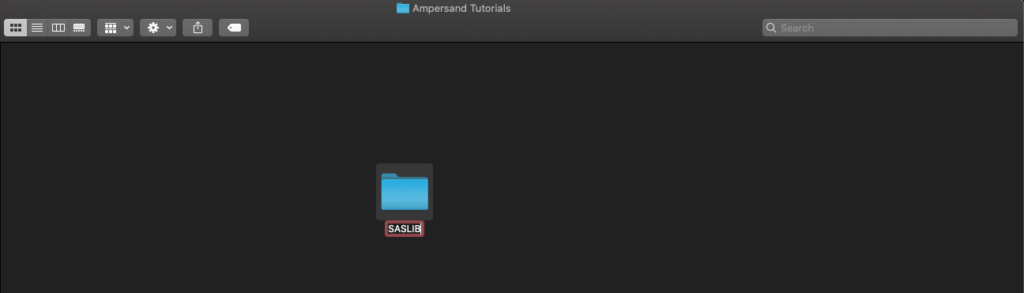
Step 1: Create a Folder in any drive of your system(Windows or Mac or Linux).

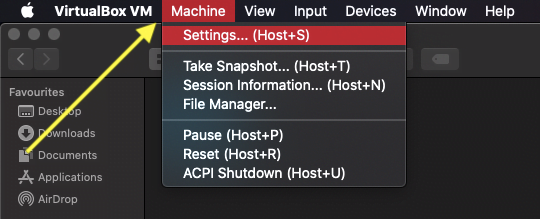
Step 2: Open Oracle Virtualbox and Select “Machine” menu, under “Machine” Menu select “Settings”.
Step 3: In the Settings screen, Select “Shared Folders”.
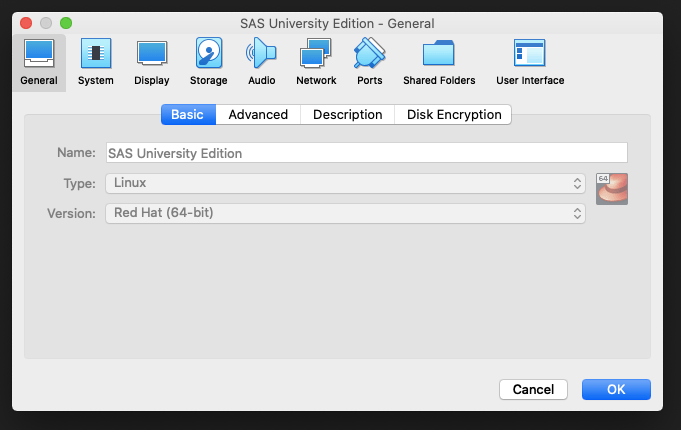
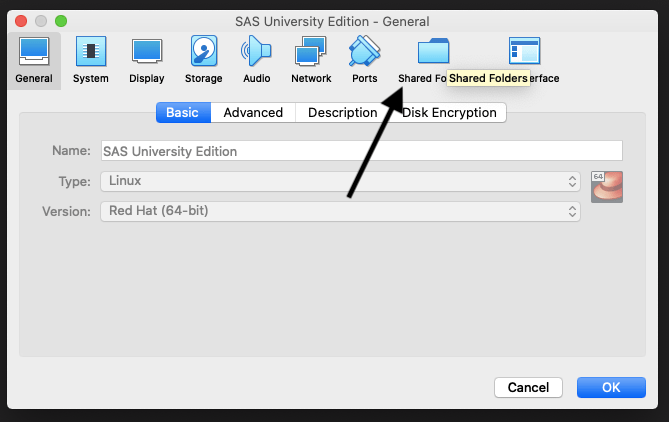
Step 4: Once Opened the “Shared Folder”, there is a “ADD FOLDER” Button on the right-hand side of the screen.
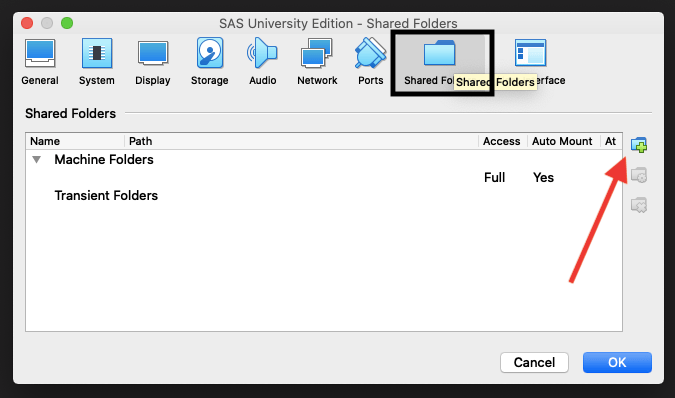
Step 5: When the “ADD FOLDER” Button is selected, the screen will open up for adding a folder, in the screen – Pull Down next to “FOLDER PATH.”
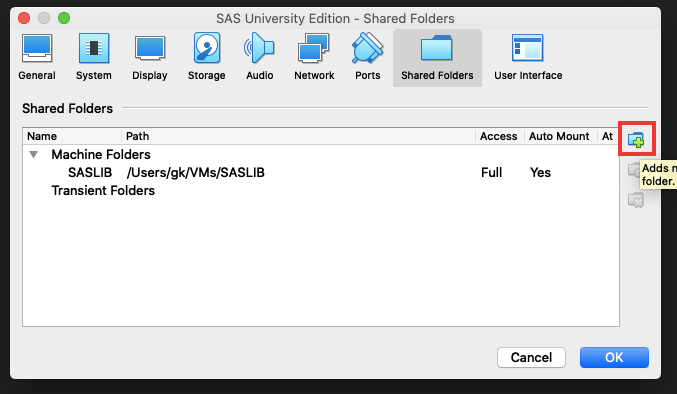
St.ep 6: It will lead to screen for selecting/pointing the folder. Browse and Select the Folder which we have created in Step 1.
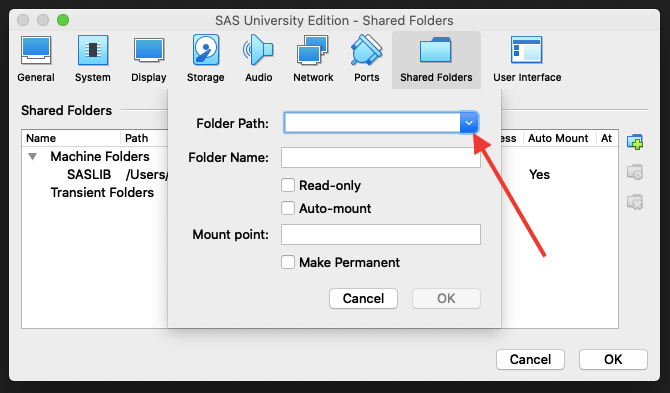
Step 7: After selecting the Folder, Select “AUTOMOUNT” & “MAKE IT PERMANENT” Combo-Box. Leave alone the “READ ONLY” Combo-Box.
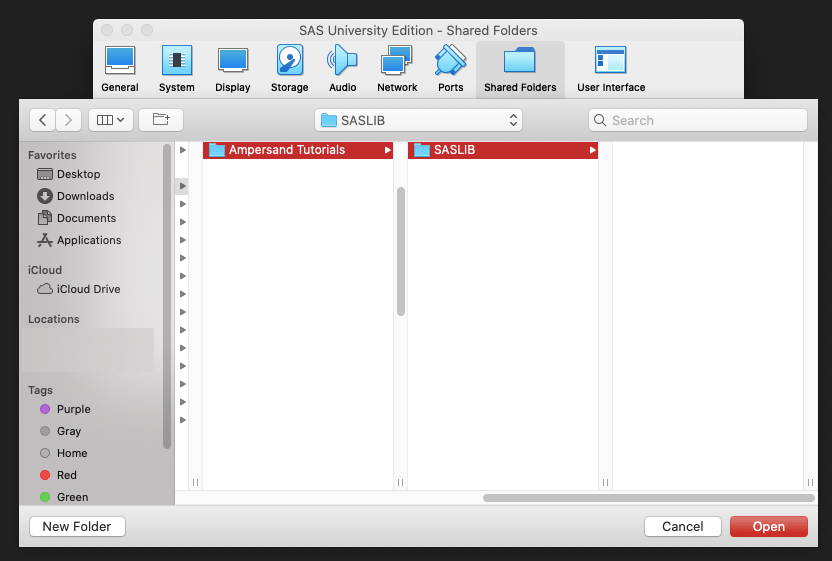
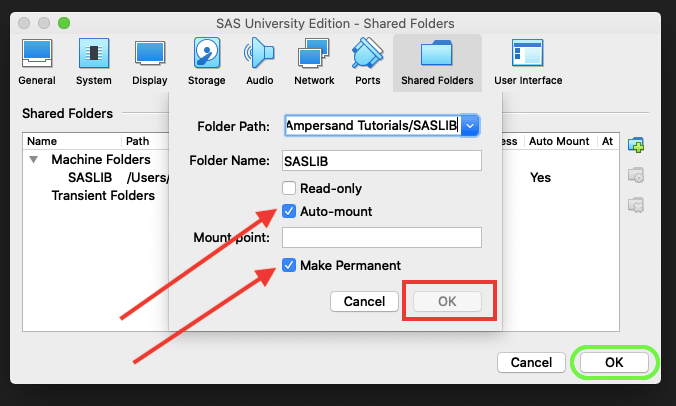
Step 8: On Click “OK”, the folder is assigned to the SAS University Edition. Start the SAS University Edition in the Browser, on the right-hand side Explorer Window; the Folder is displayed in the “Folder Shortcuts.”
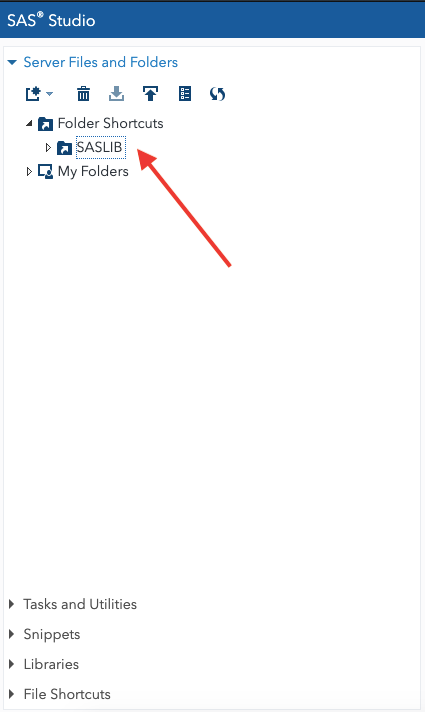
Once this is done, we can create User Defined Libraries in the SAS University Edition for Local Files and Data Transfers etc. We have learnt how to add Shared Folder or File Storage in SAS. If you wish to take a course on SAS Base and Advance check SAS Training in Chennai from Ampersand Academy Also check our tutorial on fixing bugs while installing SAS University Edition.
Frequently asked questions
Why add a shared folder in SAS University Edition?
Because the app only sees its own internal library by default. Adding a shared folder lets you point SAS to data files stored anywhere on your computer.
Which folder path should I add as the shared folder?
Use a normal Windows path such as C:UsersYourNameDocumentssasdata. Make sure you can read and write files in that folder.
Do I need admin rights to add a shared folder?
Usually not. You only need edit access to the SAS University Edition server settings file, and SAS will restart the server to apply the change.