


Quick answer: Visual Studio Code (VS Code) is a free, cross-platform code editor from Microsoft with an integrated terminal, debugging, Git support and thousands of extensions. These easy steps install VS Code and the essential extensions you need for web development.
Learn why Visual Studio Code is one of the powerful IDEs used by web developers and follow these easy steps to Install VS Code and extensions
What is VS Code?
Visual Studio IDE is a full-highlighted development tool for several operating systems like the web and the cloud. It permits clients to easily explore the interface so they can compose their code quickly and precisely.
With Visual Studio IDE, programmers likewise approach a large group of troubleshooting tools. These help them in profiling bugs and diagnosing them efficiently. Like this, they can deploy their applications confidently, realizing that they have discarded whatever might cause execution errors.
What is more, Visual Studio IDE fills in as a testing stage too. VS Code allows programmers to recreate how their applications will run in their real-time environment and guarantee they do flawlessly whenever they deploy.
Benefits of Visual Studio Code IDE:
- Precise Coding: Powered by built-in Intellisense AI, VS Code provides hints and descriptions to the developers regarding APIs and helps them autocomplete.
- Easy Debugging: Augmented with in-built debugging tools, VS Code empowers developers to debug quickly with support included for languages. It enables programmers to debug locally, remotely and cloud even in the middle of production.
- Robust Testing: Powered by powerful testing tools, VS Code enables programmers to test their apps. They can do the testing with little effort, and they can test for multiple languages and frameworks.
- Team Collaboration: Regardless of the developers operating system, VS Code empowers the Developer team to collaborate efficiently and achieve perfection in their application development.
- Multiple Extension: Visual Studio Code has several custom-built extensions which programmers can use in their projects
Steps to Install Visual Studio Code:
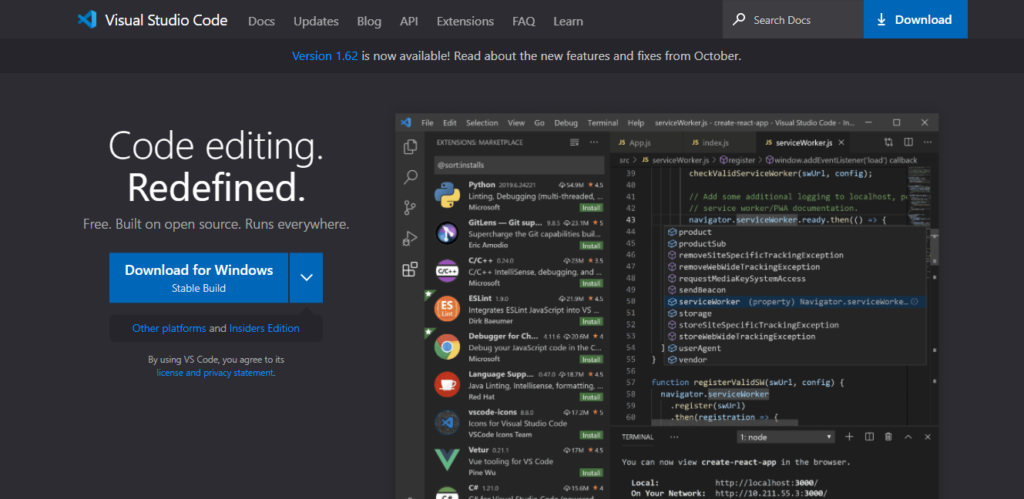
- Go to code.visualstudio.com
- Click and download the stable version for the corresponding operating system such as Windows, Linux, Mac.
- Click on next and complete the installation process.
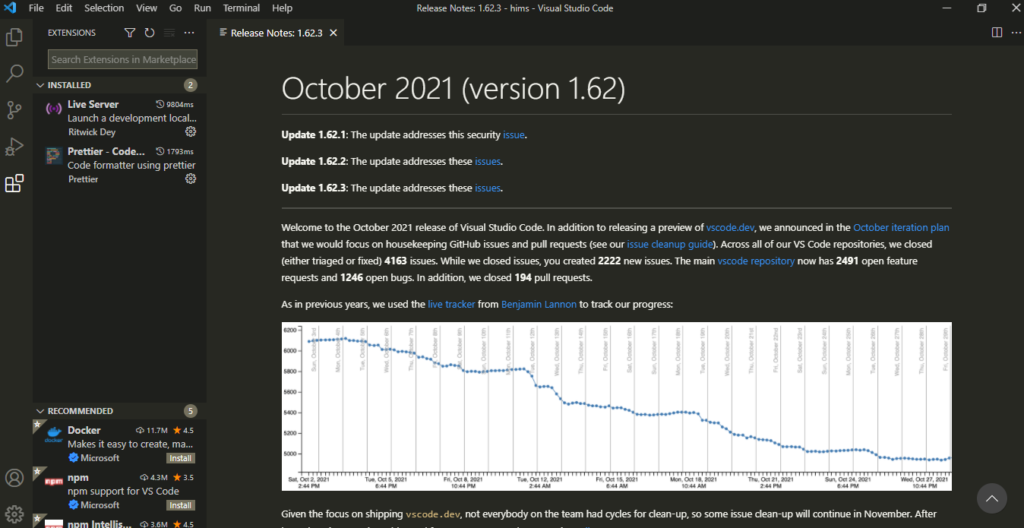
- On the left-hand side of the Visual Studio Code window, there Extensions Tab. Click on the search and search for the extension Prettier – Code Formatter and Live Server by Ritwick Dey and install both the extensions.
- Prettier helps make the code beautiful, and the Live server helps launch the website inside the development web server.


Now that you have learnt how to install VS Code. Also, read about How the web work.
After installing VS Code, follow the 2026 web development roadmap to learn exactly what comes next.
Visual Studio Code — quick FAQ
Is VS Code free?
Yes. Visual Studio Code is free, open source and runs on Windows, macOS and Linux.
What VS Code extensions should I install?
Focus on Prettier for formatting, ESLint for JavaScript, and Live Server for previewing; Git support is built in.
What is the difference between VS Code and Visual Studio?
VS Code is a lightweight editor, while Visual Studio is a heavyweight IDE mostly used for .NET. For web development, start with VS Code.
How do I open a project in VS Code?
Open VS Code, click File → Open Folder, select your project folder, then use the integrated terminal to run commands.