


Quick answer: Most SAS University Edition installation problems come from browser cache, blocked popups, ad blockers, or an outdated download. Clear your browser cache, allow popups for the SAS site, disable ad blockers, use a supported browser, and run the installer as administrator. Reinstalling the latest update solves the rest.
Fix the problems during SAS University Edition Installation VT-X Error and more
The main problem encountered when the SAS University Edition is the VT-x error which occurs due to the permission denied in System Setup Settings. Most of the Systems will have Image Virtualization enabled nowadays. But the systems may have the settings secured by denying the Image Virtualization Process.



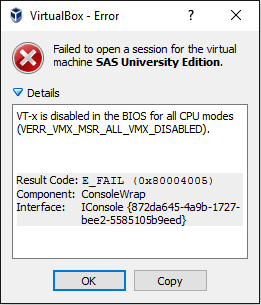
Let us clear the VT-x error and start working on the SAS University Edition
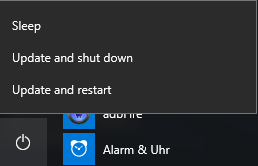
Step 1: Shut down all the applications and Restart the System.

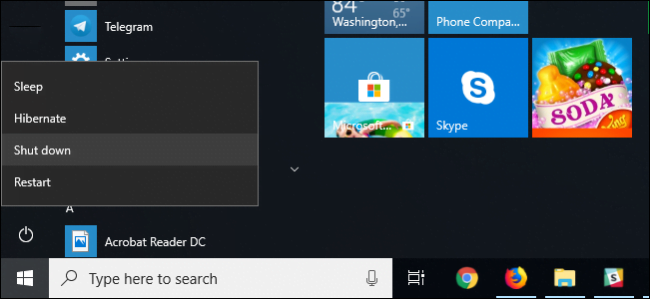

Step 2: Before the Operating System loads, enter CMOS Setup or System Setup by pressing F10 / F2 / Esc Key whichever holds good for your system.
Step 3: Once entered the Setup, go to Advanced Settings or Security Settings and look for Image Virtualization Tab or Option.

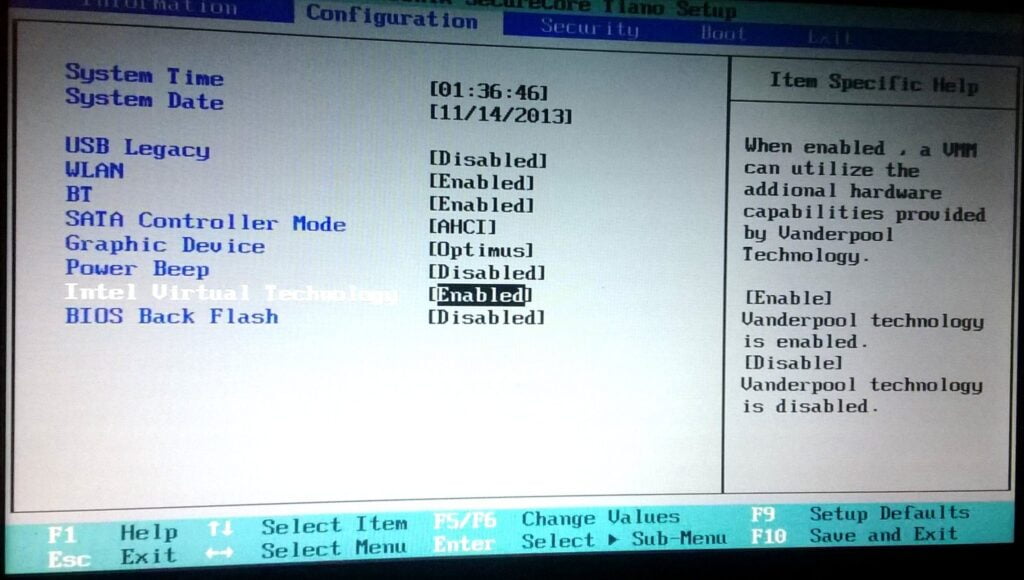
Step 4: Change the Virtualization from Disabled to Enabled.

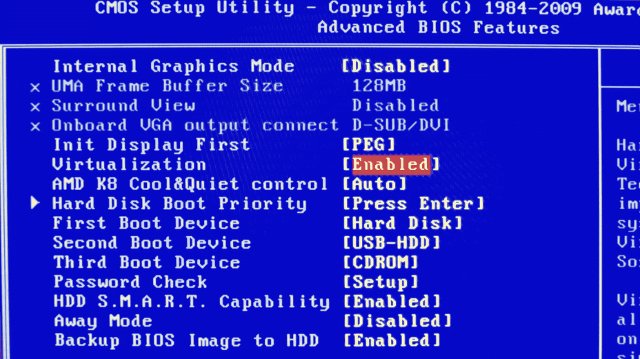
Step 5: Once Enabled the Image Virtualization, Press F10 Key for Saving and Exit.
Step 6: Let the Operating system load and Start the SAS University Edition, the Virtualbox will load normally and we can easily work on with the Statistical Analysis System Univ Edition.

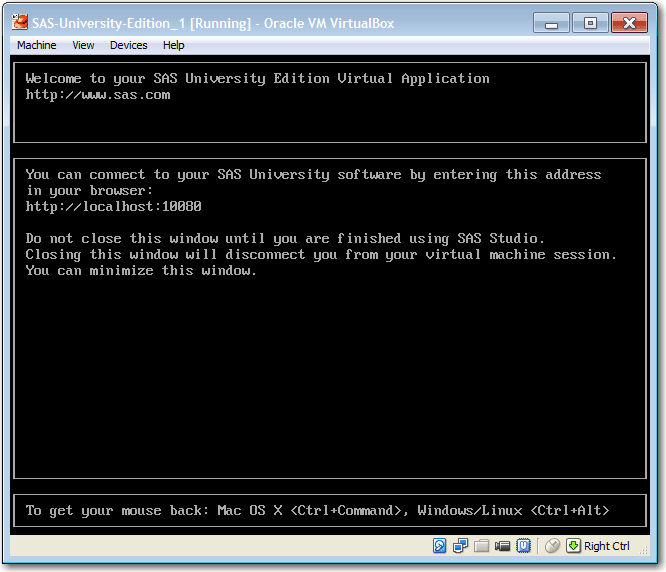
Now that you’ve learnt how to fix the problems during SAS University Edition Installation, if you have no idea in installing SAS, learn how to install SAS University Edition
Frequently asked questions
Why does SAS University Edition not open after installing?
It is usually a blocked pop-up or a stale browser cache. Allow popups, clear the cache, then reopen SAS University Edition from your desktop shortcut.
Do I need Java or a plugin installed for SAS University Edition?
Older versions needed plugins, but current versions need only a supported browser with JavaScript and cookies enabled. Update the installer to the latest release.
Can I fix installation errors without reinstalling?
Often yes. Try clearing the cache, enabling popups, and restarting the machine first. Reinstall only if the app still fails to launch.