


Quick answer: To install Android Studio on Windows 10, visit the official Android Developers site, download the Windows installer, and run it. Follow the setup wizard, choose the standard components, and let it finish downloading the SDK. Restart if prompted, then open the app to finish configuring your first project.
In this tutorial, you’ll learn how to Install Android Studio in Windows 10
Android Studio is an open-source official Integrated Development Environment for Android Operating System. It is built on JetBrains’ IntelliJ IDEA. One can use both Java and Kotlin inside Android Studio to build Android Applications.
Features of Android Studio
1. Android Emulator is in-built in Android Studio.
2. Gradle-based support system, which is a build automation tool.
3. Lint tools for catching performance issues, flags bugs and other critical errors.
4. Wizards to create app templates easily.
5. Layout Editor, which is easy to use, enables developers to create complex layouts easily with easy drag and drop and coding screens.
6. Layouts are easily viewed post creation in run time.
7. Android Wear apps are built quickly with Android Studio.
8. Google Platform with Firebase Cloud Messaging and Google App Engine support.
9. Android Studio is supported in all major Operating Systems such as Windows, Mac and Linux.
Requirements for Installing Android Studio
1. Memory Requirement: 4 GB RAM Minimum | 8 GB RAM Recommended
2. Disk Space: 2 GB Disk Space Minimum | 4 GB Disk Space Recommended
3. Operating System: Windows 7, 8 or 10. 64 Bit for Android Emulator
4. JDK Requirement: Java Development Kit 8
5. Screen Resolution: 1280 * 800
Install Android Studio in Windows 10
Ensure that the system meets the requirements for installing Android Studio.
1. If the system meets the criteria, we can first install Java 8. One can download the Java 8 from the official website given below.
https://www.oracle.com/in/java/technologies/javase/javase-jdk8-downloads.html
We can choose the correct version based on the Windows version. On clicking the link, we need to signup with Oracle. Enter the details, verify the email, and we can download the Java installation file.
2. After downloading, proceed with installation by clicking next.
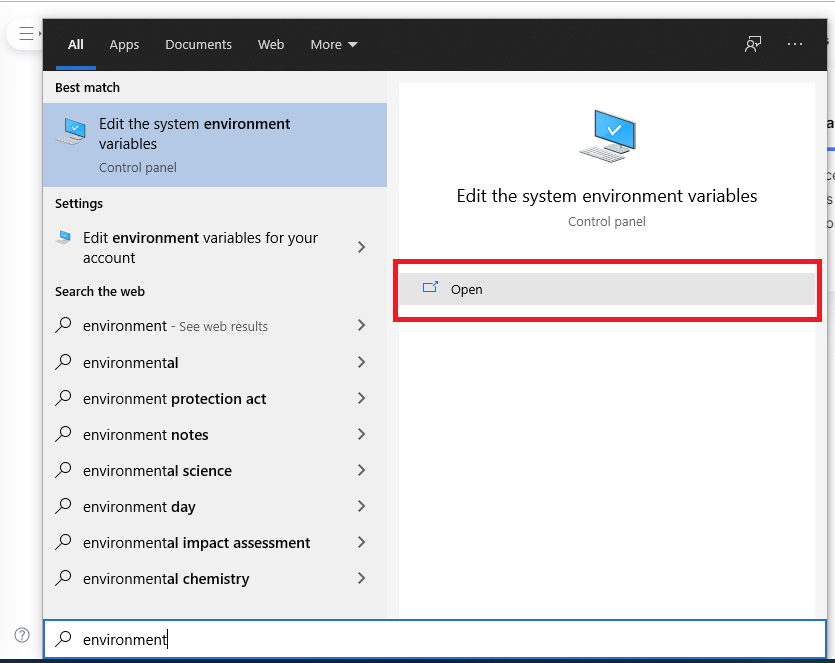
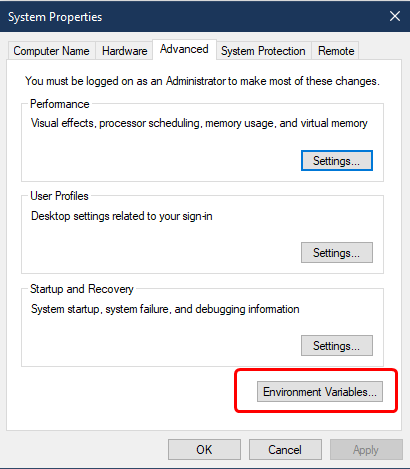
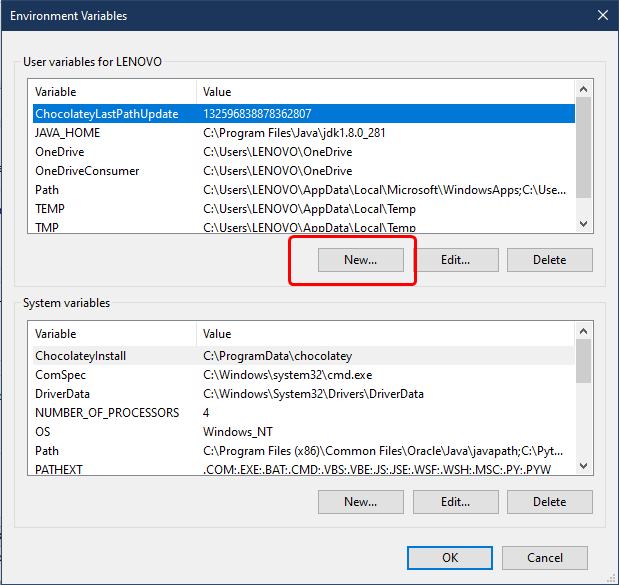
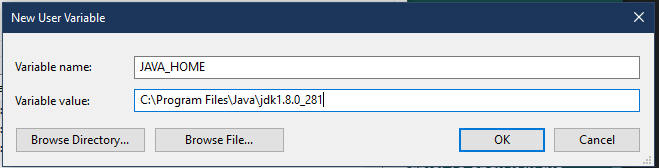
3. Next, we must add the path in the environmental variable. To open it in Windows 10, Click Start and type Environmental Variables. Please open it and click Environmental Variables. In the top section, click New. Enter Variable name as “JAVA_HOME” and value as C:Program FilesJavajdk1.8.0_281




4. Now, we can download the Android Studio from the official website given below.
https://developer.android.com/studio
5. Click Next and complete the installation.
Now you’ve learnt how to Install Android Studio in Windows 10. In the following tutorial, we will discuss the Android Studio File Structure and User Interface basics. Learn about Web Development in 2021. If you’re looking to build Mobile Applications for Business, check this out.
Frequently asked questions
Where do I download Android Studio for Windows 10?
Get it from the official Android Developers website, then pick the Windows installer and run the downloaded file.
How much storage space does Android Studio need?
Allow around 10 GB free for the IDE, Android SDK, emulator images, and cached build files on your drive.
Does my Windows 10 PC need a powerful processor to run it?
A 64-bit CPU with at least 8 GB RAM and virtualization enabled is recommended for smooth emulator performance.